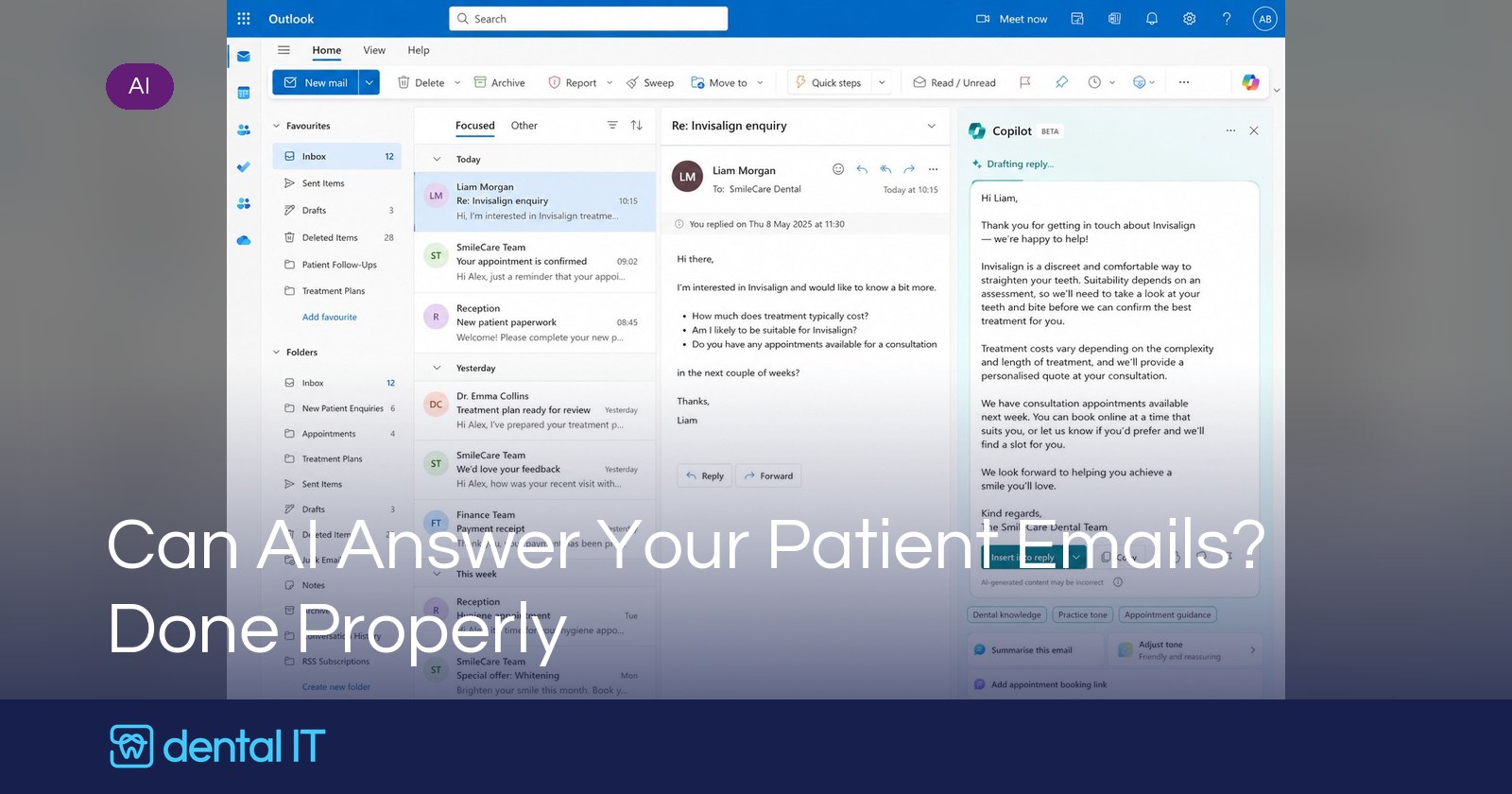
One question comes up constantly from practices at the moment, and it usually arrives worded almost exactly like this: "Can we connect our email to AI so it helps answer patient enquiries?" The short answer is yes. The longer answer is that it works brilliantly when it is done in stages, and it goes wrong when a practice tries to jump straight to "the robot replies to patients."
This article walks through the sensible route, whether you are on Microsoft 365 with Outlook or Google Workspace with Gmail. The same four stages apply to either platform, and honestly to almost any small business, not just dentistry.
I have concentrated here on Microsoft and Google because most people use one or the other for their email. And where you are, then using their AI is the easiest integration. I am a great fan of Claude and ChatGPT, but for email specifically, this is the path of least resistance.
First, the privacy question
Do not paste patient emails into free consumer chatbots. That is the one hard rule, and we have written before about why free AI tools and patient data do not mix.
Instead, use the business AI built into the platform you already pay for. On Microsoft 365 that is Microsoft 365 Copilot. On Google Workspace it is Gemini, which since early 2025 has been included in Business Standard plans and above rather than sold as a separate add-on. In both cases, on a business plan, your prompts, emails and documents stay inside your organisation's own environment, are not used to train the underlying AI models, and sit under the same GDPR and data protection agreements as the rest of your Microsoft or Google data. The AI can also only ever see what the signed-in staff member can already see, so your existing permissions still apply.
One licensing wrinkle on the Microsoft side: the free Copilot Chat that comes with Microsoft 365 cannot read your mailbox or your files. The paid Copilot licence is precisely what unlocks that, so budget for licences for the team members who handle the inbox.
Stage one: AI drafts, humans send
Start with assisted drafting, because it delivers value on day one with almost no setup.
In Outlook, the paid Copilot licence adds "Draft with Copilot" and "Summarise" to every thread. A receptionist opens a patient enquiry, asks Copilot to summarise the back and forth, then asks it to draft a reply. Copilot grounds the draft in the email thread and, increasingly, in your organisation's wider content.
In Gmail, "Help me write" does the same job. Gemini can turn a rough note into a finished email, polish tone, summarise a long thread, and answer questions about what is buried in the inbox from the side panel.
The rule at this stage is simple and it never changes: the AI writes the first draft, a human reads it, edits it, and presses send. Every time.
Stage two: house rules and a knowledge pack
Here is where practices either get consistent, on-brand replies or get generic AI mush. The difference is a small library of documents that the AI can draw on. Think of it as writing down the things your best receptionist carries in her head. A good starter pack looks like this:
- A house style guide. How you greet patients, how you sign off, the reading age you aim for, phrases you always use, phrases you never use, and the promises staff must never make in writing (exact fees for complex treatment, clinical outcomes, guaranteed appointment times).
- Escalation rules. Which emails a human must handle from the first line: complaints, anything clinical, safeguarding concerns, anything angry or distressed.
- Your cancellation and failed-to-attend policy, written exactly as you want it explained to a patient.
- A fee guide and treatment FAQs. Implants, whitening, aligners, hygiene, written in plain patient-friendly language rather than clinical shorthand.
- New patient onboarding. What happens at a first visit, what to bring, how registration works.
- The practical stuff. Opening hours, parking, disabled access, how to contact the practice urgently.
A few rules make the pack dramatically more effective. Keep one topic per document. Date each one and give it an owner. Write in plain language, because the AI will mirror the tone it reads. And keep the folder curated, because the AI cannot tell a current policy from the abandoned draft sat next to it. A tidy folder of eight short documents beats a dumping ground of eighty every time. Word documents, Google Docs or plain markdown files all work; the AI reads them equally happily.
Now the bit most people do not know about. You do not have to copy and paste from these documents, because both platforms let you pull them into a prompt on demand.
In Outlook and across Microsoft 365, typing a forward slash in a Copilot prompt opens a file picker, so a receptionist can write something like: "/House Style /Cancellation Policy, draft a reply to this patient explaining our cancellation terms and offering two alternative times." Copilot writes the reply using your wording and your policy, not its own invention.
In Gmail, the same trick uses the @ symbol. Tag @Cancellation Policy while composing and Gemini pulls the details from that Drive file straight into the draft. Suddenly your knowledge pack behaves like a set of living templates.
Stage three: give the practice its own assistant
Slash commands still rely on staff remembering to use them. The next step is baking the house rules in permanently by building an assistant, which both platforms now make genuinely easy.
On Microsoft 365 this means a Copilot agent. Its instructions field holds your house rules, and its knowledge sources point only at your approved SharePoint folder. Staff chat to "Ask the Practice" instead of raw Copilot and get answers grounded in your documents. Going further, Copilot Studio can build an autonomous version with a trigger such as "when a new email arrives": it reads the enquiry, classifies it, drafts a reply from the knowledge pack, and saves it to Drafts for a human to review and send. Agent usage is metered on top of licences, so this stage carries some consumption cost.
On Google Workspace the equivalent is a Gem. You give it instructions and attach knowledge files, and files added from Drive stay live, so updating the fee guide updates the Gem automatically. Gems can be shared across the team with the same controls as sharing a Drive file, and they sit in the side panel right inside Gmail. For the automated version, Workspace Studio (which launched under the name Workspace Flows) provides the trigger and action layer: when an email arrives, run a Gemini step against your instructions, draft the reply, and hold it for review.
Notice what both routes have in common. The AI drafts. It does not send. Keep it that way for months before you even discuss anything more automatic, and some practices will rightly keep it that way forever.
Stage four: from answering to acting
Everything above is the AI talking about information. The final stage is the AI doing things: offering real appointment slots, booking, rescheduling. Neither Copilot nor Gemini can do this out of the box, because it needs a secure integration with your practice management system, for example via the Dentally API, built as a custom connector or a small middleware service.
It is absolutely achievable, but one safeguard is non-negotiable: an email address does not prove identity. An inbound email should never directly change your appointment book. The safe pattern is for the assistant to propose available times, then either have a staff member confirm the change or send the patient a secure confirmation link, with every action logged.
The ground rules that make all of this safe
The AI never gives clinical advice. A human reviews every outbound patient email. Permissions get tidied before rollout, because the AI surfaces whatever the user can access, including things nobody has looked at since 2019. The setup gets recorded in your data protection documentation, and staff get an hour of training on what the assistant is for and what it is not.
Where to start
Pick two or three front desk staff. License them. Spend one afternoon writing the knowledge pack, which is genuinely the highest-value hour of the whole project. Run it for a month, count the minutes saved per email, then decide how far up the stages you want to climb.
The practices getting this right are not the ones with the fanciest AI. They are the ones who wrote down their house rules first. If you want a hand with the licences, the setup, or the knowledge pack itself, this is exactly the sort of project we run with practices, alongside the rest of our thinking on using AI well. Get in touch and we will get you to stage one within the week.